
Integration initiated from Pliant (Signed redirects)
Authorize Data SharingBefore calling our endpoints, the customer needs to authorize the partner to access data stored with Pliant. Pliant’s customers have the option to authorize partners in the app. Once a partner is authorized for an organization, the partner can call all available endpoints within the agreed scope (e.g., list transactions, upload receipts, issue cards, etc.).
Authorize Data Sharing
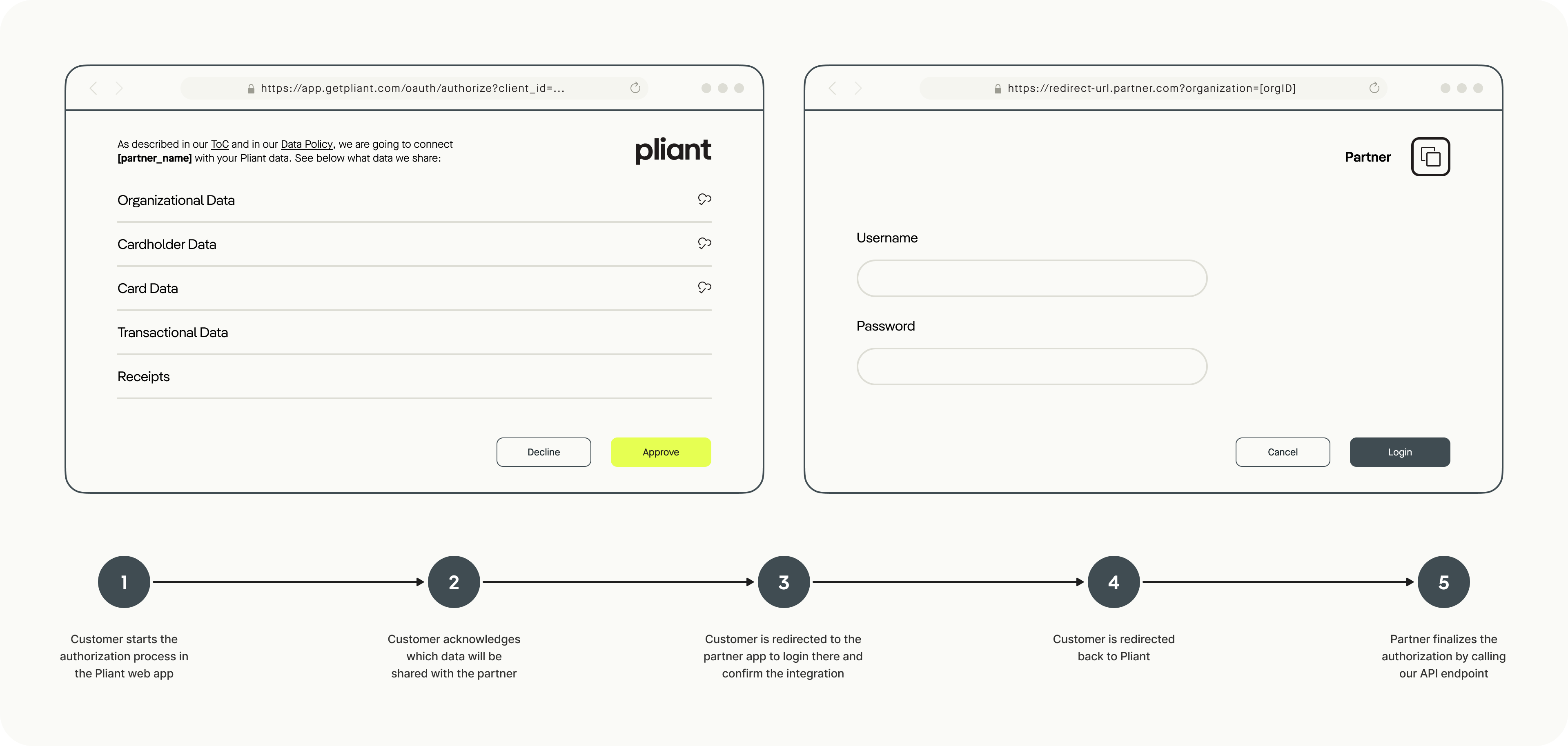
1. Start the process
In the Pliant web app, the admin of an organization initiates the process to authorize a partner for the given organization.
2. Customer consent
Pliant provides information to the customer regarding the data to be shared with the partner.
The admin approves the authorization by giving explicit consent.
3. Redirect to partner app
The admin is redirected to the partner app in the browser. Pliant uses a URL provided by the partner and appends the following query parameters:
-
organizationId
The unique identifier for the Pliant organization.
The partner must persist this ID, as it is required later when calling API endpoints. -
redirectUrl
The URL the partner uses to redirect the user back to Pliant.
The partner appends astatusparameter (e.g.&status=successor&status=error) to indicate the outcome of the integration.
A status oferrorrolls back the integration, whilesuccessdisplays a success message. -
partnerId
The unique identifier of the partnership on the Pliant side.
Only relevant if multiple partnerships exist. -
t
Unix timestamp (seconds since epoch) indicating when the redirect was generated, used for replay-attack prevention. -
v1a
A versioned Base64-encoded Ed25519 signature (see below).
4. Partner verifies redirect authenticity
The partner verifies the redirect signature as described in the sections below.
5. Partner app login
The admin logs into the partner’s web app using their existing credentials.
6. Redirect back to Pliant
Upon successful authentication, the admin is redirected back to the Pliant web app.
The redirectUrl is extended with the status of the integration. Partners must use this URL for the redirect.
7. Finalize authorization
The partner finalizes the authorization by calling the Activate Organization Authorization endpoint in Pliant’s API. This step is required to complete the integration and ensures both parties explicitly agree on the data exchange.
8. Active integration
The admin sees the active integration/authorization within Pliant and can revoke the authorization if necessary. This flow ensures that both parties explicitly agree to exchange data.
Secure Redirects
Signing Scheme
Each payment program has its own Ed25519 key pair used to sign redirects. You can retrieve your program’s public key from: /api/partner-management/signing/jwks.json. The endpoint requires authentication using your API credentials. The signature covers these components, concatenated with dots: <t>.<partnerId>.<organizationId>
Rules for constructing the signed content
<t>— Exactly the timestamp value from thetquery parameter (integer, seconds since epoch).<partnerId>— ThepartnerIdquery parameter, as received.<organizationId>— TheorganizationIdquery parameter, as received.
Verifying a Redirect
Partners may verify the redirect following this process:
-
Validate timestamp tolerance
Compare
tto your current system time. We recommend enforcing a tolerance such as ±5 minutes to mitigate replay attacks. Choose a window that fits your operational and security requirements. -
Reconstruct the signed content
Build the string exactly as described above
-
Verify the signature
- Obtain the Base64-encoded signature.
- Use the Ed25519 public key from the JWKS to verify the signature over the reconstructed string.
If any check fails, the redirect must be treated as invalid.
Example
The partner provides the redirect URL: partner.com/login
When Pliant redirects a user to this URL, several five parameters are appended, e.g.: partner.com/login?partnerId=96ff72d6-4429-4eb2-b50b-495bbd6b0035&organizationId=3ecdc3b5-b651-457a-a6d3-04622a247cd5&redirectUrl=https://getpliant.com/organizations/3ecdc3b5-b651-457a-a6d3-04622a247cd5/integrations&t=1765273107&v1a=rsEelgvBc7nDijrq+YiHqpplkeHiCCeiHa0LSuXsWgLa5PqjWrigODtY1P19NKR3PsGfZpSrwt+Jk0F5RdpLAg%3D%3D.
The partner would:
-
Confirm that
t=1765273107is within your allowed tolerance. -
Construct the signed content:
1765273107.96ff72d6-4429-4eb2-b50b-495bbd6b0035.3ecdc3b5-b651-457a-a6d3-04622a247cd5 -
Verify the Ed25519 signature using the public key from the partner’s JWKS.
Once verification succeeds, you can trust that the redirect originated from Pliant and that the identifiers were not altered. The partner activates the integration on their side and redirects the user back to Pliant: https://getpliant.com/organizations/3ecdc3b5-b651-457a-a6d3-04622a247cd5/integrations?status=success. In parallel, the partner finalizes the integration by calling the Activate Organization Authorization endpoint.
Updated about 2 months ago